PDF to Markdown Tables: Verify Values, Not Just Formatting
For a simple PDF table, aim for Markdown columns with explicit headers and units. If the source has merged headings or several levels of grouping, preserve that meaning in HTML or a structured export instead of forcing it into a flat table. For calculations, use a spreadsheet export and keep the PDF alongside it.
The first check is whether each number still belongs to the right label. A tidy grid can hide a shifted column.
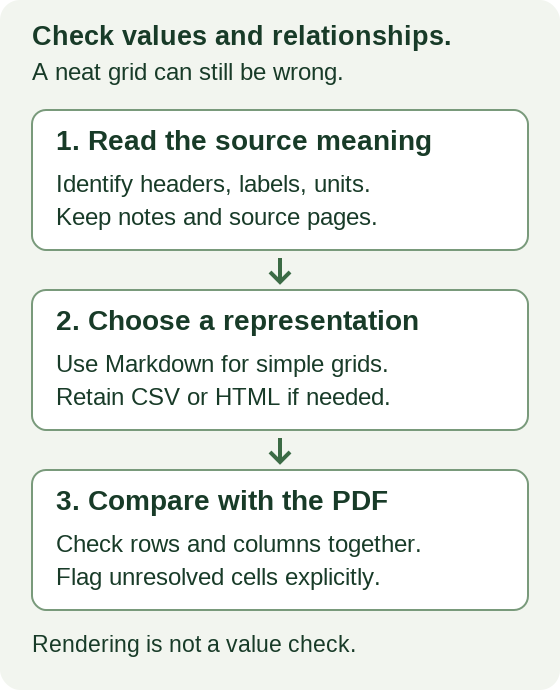
Start with a table you can compare directly
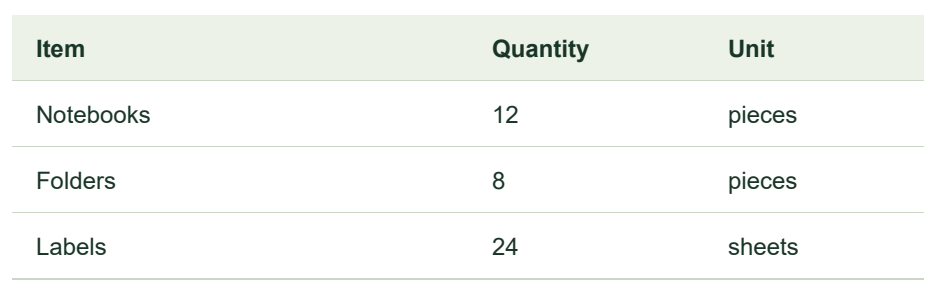
Original PDF table
Actual default Markdown
Item Quantity Unit

Notebooks 12 pieces

Folders 8 pieces

Labels 24 sheets
The values and units are present. The default export flattened the columns into text lines, so a Markdown editor has no table cells to align.
Manual repair
Add a header and separate the three cells with pipes. The table below is a manual edit checked against the PDF. Compare the original sample with the full default export.
| Item | Quantity | Unit |
| --- | ---: | --- |
| Notebooks | 12 | pieces |
| Folders | 8 | pieces |
| Labels | 24 | sheets |
If 12 were placed beside Folders, the syntax would still render correctly. Compare the labels and values with the PDF before accepting the formatted version. Keep any source units or notes with the table.
Choose a format that fits the structure
Use a pipe table for a rectangular table with a single header row. The GitHub Flavored Markdown specification defines this extension; it does not provide a direct merged-cell notation or allow block-level content inside cells. Your destination reader must support the extension too.
For grouped headings, you can repeat the group in each column name, such as 2025 revenue and 2026 revenue. Do this only when the source makes those relationships explicit. Preserve blank cells; shifting later values left changes their meaning.
For complex spanning cells, consider HTML if the destination supports it. For sorting or calculations, keep CSV or a DataFrame export. Docling's table export example shows CSV, HTML and DataFrame routes. Compare them with the same PDF rather than choosing the neatest output.
Check rows, columns and continuation pages
Read one complete row across, then follow a column down. Check the first and last data rows and any place where the layout changes. In a multi-page table, remove repeated headers from the data only after confirming where each continuation begins.
For values you intend to use, check decimal separators, minus signs, percentages and units. A footnote below the table may qualify an entire column. Keep it close to the exported table.
If a total can be recalculated, use it to find discrepancies. Matching totals can still conceal offsetting errors, so compare the individual values needed for your task.
Repair the representation against the PDF
Use the browser converter for a first pass. Its optional layout reconstruction handles some clear numeric tables, but complex structures need manual review. Use page comparison to locate the source while correcting an affected page, then download again.
If a cell is unreadable, retain its page reference and mark it unresolved. An assistant can help arrange supplied values into Markdown; do not let it invent missing values from surrounding rows.
For scanned tables, start with OCR. For calculations, see the PDF-to-Excel guide. Use the output checklist for the rest of the document, or the batch workflow for multiple files.
Sources and sample: GFM table syntax and Docling export documentation linked above. The sample PDF and default output are self-created public files; the pipe table is a manual representation. Reviewed October 26, 2026.