PDF to MD Converter: Check the Full Export Beyond the Preview
If a PDF-to-Markdown preview stops before the final page, download the .md and search it for a distinctive phrase near the end of the source. A shortened preview can still have a complete downloadable result. If the phrase is missing from the saved file too, inspect that source page and its extraction message.
Our browser converter keeps the visual preview separate from the editable Markdown used for copying and downloading.
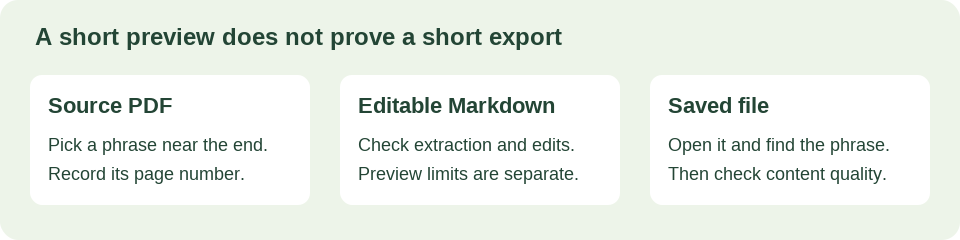
Check the saved text before reconverting
- In the PDF, choose a distinctive phrase near the beginning and another near the end. Avoid repeated headers.
- Convert the file. Check that any chosen page range includes both source pages.
- Search for the phrases in the editable Markdown.
- Download .md, open the latest saved file in a text editor and repeat the search.
If the final phrase is in the saved file, the shortened preview did not remove it. Review the sections you need rather than repeating the conversion solely to extend the preview.
Understand the display limits
The current preview displays up to 200 non-empty lines and limits each displayed line to 2,000 characters. Copy and download use the complete current Markdown field, within the separate 500,000-character output limit.
The PDF source is limited to 20 MB and 100 total pages. Selecting a smaller page range does not bypass that source-file limit. A range such as 2,4-5 deliberately omits the other pages; their absence is different from a truncated export.
For a document where every page matters, check the sections between your two phrases too. The phrase check is a way to locate a failure, not to establish that the intervening extraction is correct.
When the saved file also lacks the text
Return to the corresponding PDF page. Try selecting and copying a sentence. An image-only page needs the separate OCR step; a damaged existing text layer may need another extraction route.
Use source-page comparison to inspect what the tool generated. A processed-page counter includes pages that produce no text, so reaching the last page does not mean every page contributed words.
If you cancel a conversion, wait for the cancellation message before retrying. The tool does not provide a partial download for a cancelled conversion. For files outside its limits, prepare an appropriate smaller source document or use a local workflow.
When Download appears unresponsive
Open the browser's download list and locate the actual file. Check that it is the latest version, especially after editing the output.
If no usable file appears, use the tool's retry link, Open text or Copy fallback. Keep the page open until you have a saved copy. MDN's download property documentation explains why a download attribute alone does not establish that a save will happen. The tool prepares browser file data using a Blob.
Once the saved text is complete enough for your task, use the output checklist to review reading order, headings, tables and figures.
Sources and review: current converter limits and download behavior, plus the MDN browser references linked above. Reviewed October 26, 2026.