Convert MD File to PDF: Fix Missing Local Images
When images disappear from a Markdown-to-PDF export, check whether the exporter can find the image files before changing page layout. Start with one image and a short Markdown file. Once that exports correctly, apply the same path and asset arrangement to the full document.
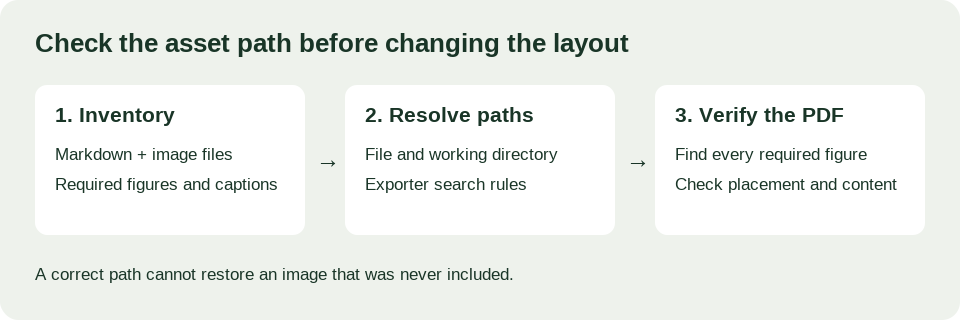
Keep one portable document folder
Put the Markdown and its images together:
handoff/
  report.md
  images/
    overview.png
    process-diagram.png
Inside report.md, use a reference matching the actual file:
Check the spelling, filename case and extension. If you move report.md into another subfolder, update the relative path or move the assets consistently. The folder above is an illustrative arrangement; use your own image files.
In VS Code's Markdown preview, paths without a leading slash are relative to the current file; leading-slash paths are workspace-relative. Check the rules of your PDF exporter separately.
If preview works but export does not
Create a short .md containing just one local image and its caption. Export it with the same tool and settings. This separates an asset problem from a complicated page layout.
For the Markdown PDF extension, use its documented export and diagnostics commands. VS Code's preview and the extension's export do not use identical processing paths.
Keep preview security protections enabled. For a blocked remote image, correct its URL or use a permitted local copy rather than disabling protection for an untrusted workspace.
For Pandoc, check the working directory
Pandoc's resource-path option controls where it searches for images when generating formats such as PDF. By default, it searches the working directory.
For the folder above, run this from handoff/ with Pandoc and a supported PDF engine installed:
pandoc report.md --resource-path=. -o report.pdfIf you configure several resource directories, include . when you still need the working directory searched. Pandoc uses a semicolon between paths on Windows and a colon on Linux or macOS. Check which directory the command actually runs from before changing image references throughout the document.
For an online service, include the assets it needs
A Markdown file usually contains image paths rather than image bytes. Uploading report.md alone does not give a website access to images/ on your computer. Use a service that accepts the asset bundle you can provide, following its archive or upload instructions.
Remote images may require public access or supported authentication. Do not make a private image public simply to satisfy an exporter; choose another route if it cannot meet your handling requirements.
If the Markdown came from our converter
In the PDF-to-Markdown tool, enable Include source-page images (ZIP) before conversion, then select Download ZIP + images. Unzip the bundle with document.md beside images/.
The bundle contains whole-page PNGs, not individually cropped figures. Downloading only the .md leaves image references without the PNG files. For an Obsidian handoff, see the note-and-image folder example.
Check the saved PDF
Locate each required figure in the PDF reader. Compare the image, caption and orientation with the source, especially around page breaks. If the image is present but clipped or misplaced, continue with the rendering and print-layout guide.
Sources and review: VS Code Markdown documentation, Markdown PDF extension and Pandoc resource-path documentation linked above; image-bundle behavior checked against the current converter. Reviewed October 26, 2026.